Last reviewed: 27 May 2026
XX2 Mobile Game Access and Loading Guide
This guide deals with launching and loading games after setup, referring to APK installation only where it affects access.

Ways to access games
Treat app installation and game startup as separate tasks
“Game download” may refer to app installation, opening a title or waiting for game assets to load. This page deals with launching games and resolving loading issues after setup.
Use the APK guide when Android setup has not been completed. When the application opens but a title does not load, review phone performance, cached data and the network instead.
- Launch the application or supported browser version
- Confirm the account is signed in before choosing a game
- Choose one game and allow it to finish loading before another action
- Keep one connection active until the title finishes loading
Access through the app or browser
Compare game access through the browser and app
The browser can be useful for a quick review, while the application may offer more consistent navigation. Select according to the device, connection and account flow, and test both paths before assuming the service is unavailable.
When the browser works but the application is slow, clear only the relevant browser cache and use a reliable connection. For app access, keep the version current and leave adequate available storage.
Performance and connection
Review phone and network conditions before blaming a game
Low memory, restrictive power saving or a network change may interrupt the first game load. Such delays are especially common when the cellular network is busy.
Run one controlled test: restart the application, access a single game, remain on one network and let the loading screen finish. If only that title keeps failing, give support its exact name and the time of the error.
- Close resource-heavy apps running behind the screen
- Leave enough available storage for loading and updates
- Disable aggressive battery saving during a game session
- Give support the precise title and error message rather than a general failure report
More controlled session habits
Use clear session limits and deliberate controls
Set the session duration and limit prior to launching a game. Planning first also reduces rushed taps, repeated reloads and confusion around wallet or reward labels.
If a wallet or profile screen freezes, wait for a response before pressing again. Repeated taps during lag make it unclear which action was recorded.
Screen reference
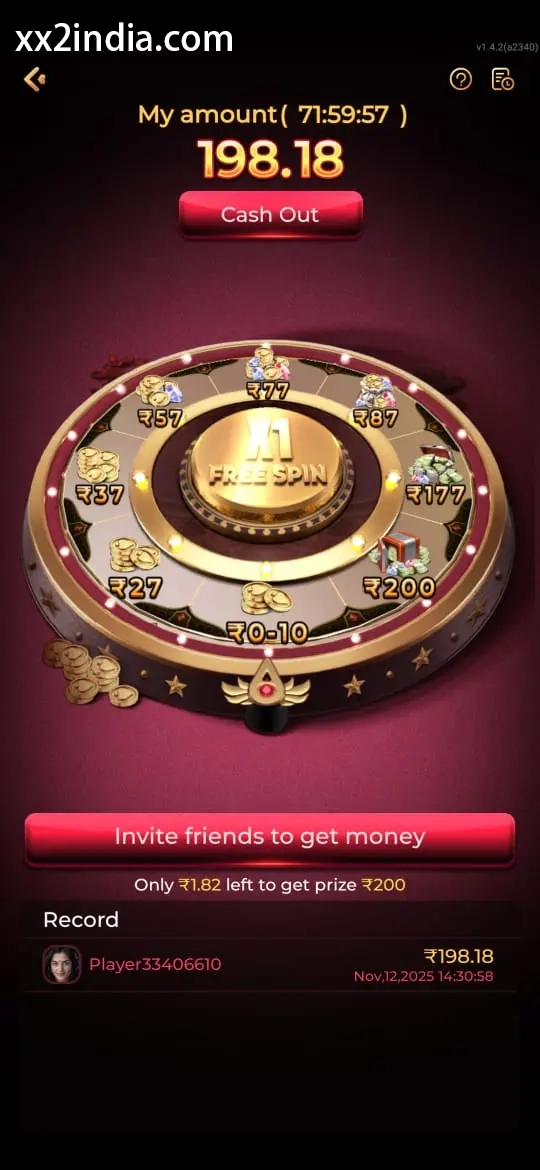
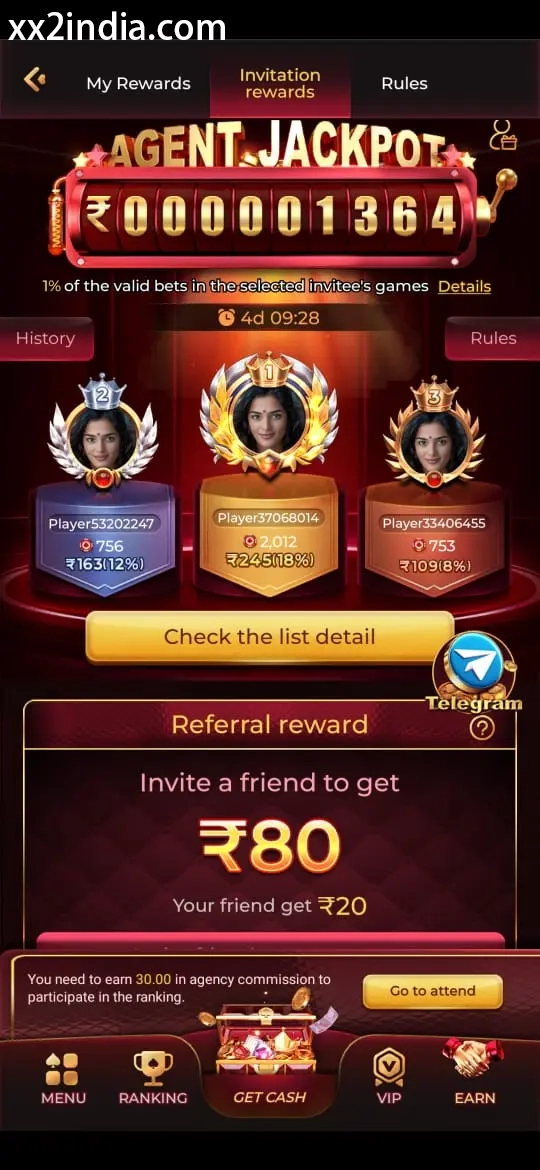
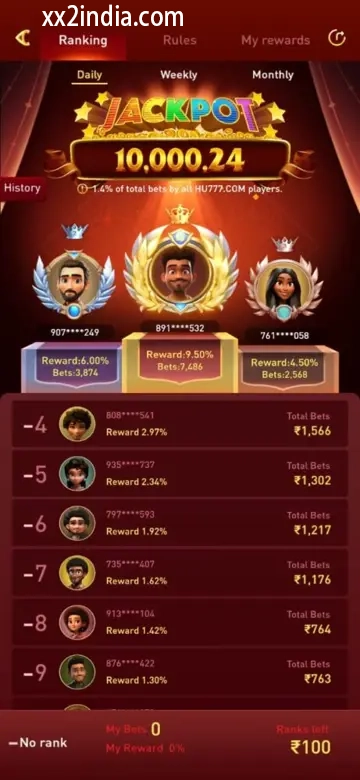
XX2 Game Access and Loading Screen Examples
Use screenshots for layout only; follow the current prompts on your phone.
Related guides
Choose the relevant guide
Key answers
Questions answered here
What is the difference between opening games and downloading the APK?
Downloading the APK installs the Android application; game access begins when individual titles are opened and loaded after the app or browser is ready.
What can cause slow game loading?
A poor connection, low storage, aggressive battery saving, old cache or a network change during loading can slow a game.
Can XX2 games run in a mobile browser?
Browser play may be offered, but its behaviour can vary from the app according to the phone, connection and account status.
What should I prepare before launching a game?
Choose a reliable connection, close heavy background apps, verify login and read the game labels before launch.